See who has access to your SharePoint site. And how.
WhoHasAccess365 is a web part that reads a site's permissions and lists every person and group with access — plus the exact chain that grants it: direct, via a SharePoint group, via an Entra ID group, or through a sharing link. It is read-only by construction. The shipped verifier proves zero write calls.
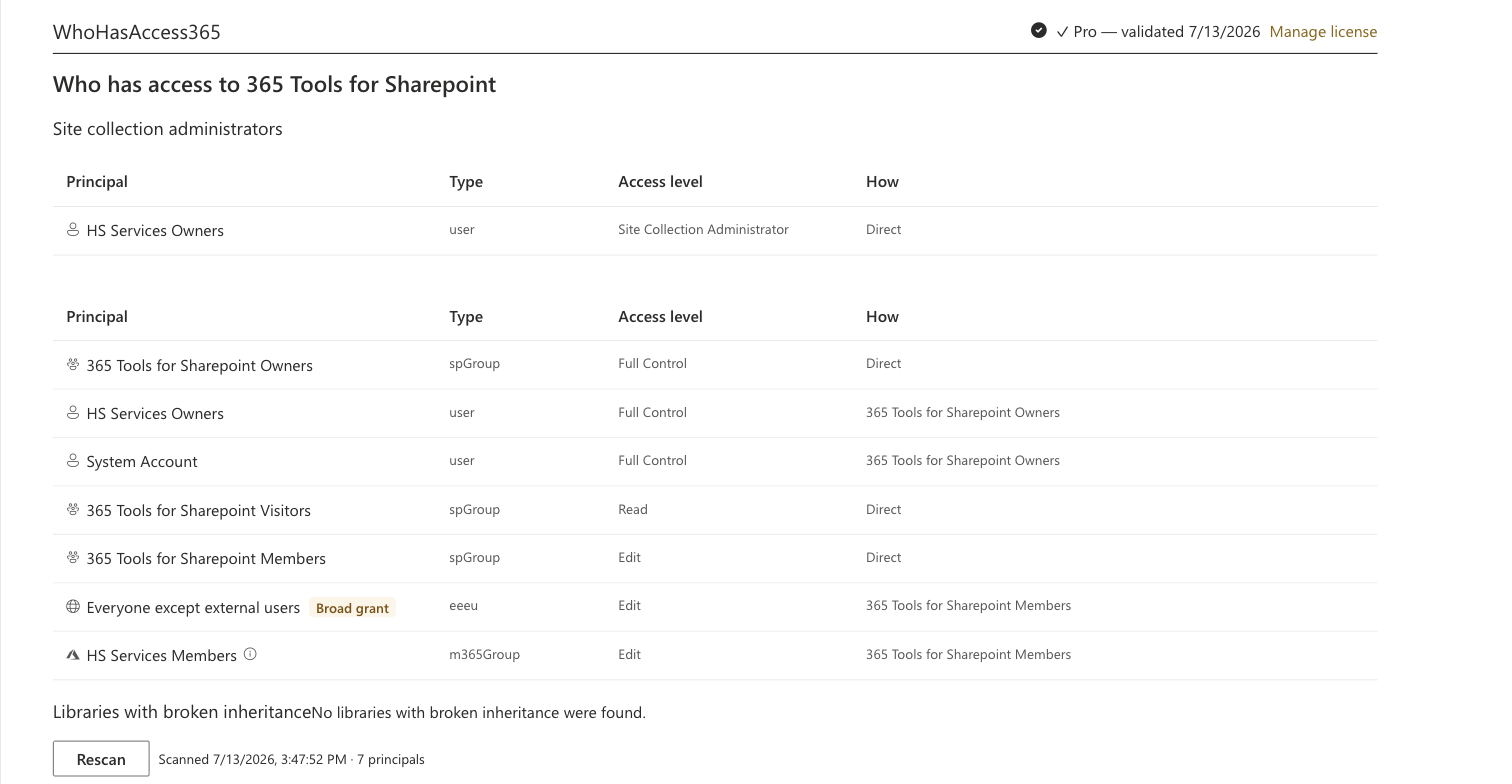
WhoHasAccess365 running in a live SharePoint site.
What this is — and isn't
The quick scan before the audit. Not the audit.
WhoHasAccess365 is not a compliance suite. It won't score your tenant, track drift over time, or file reports for your regulator. It answers one question fast: who has access to this site, and how. If you need the full audit, run this first — so the audit holds fewer surprises.
The problem
The information exists. SharePoint never puts it in one place.
A manager asks: who can see this folder? A fair question. SharePoint's answer is scattered across five screens.
Site permissions shows three groups. Each group's membership is another click. Entra ID groups appear as a single opaque name. Lists and items that broke inheritance don't announce themselves. Sharing links exist item by item, visible only if you already know where to look.
So the honest answer is usually "give me an afternoon". It should be "give me a minute".
What stays invisible in the standard UI
- Who is actually inside "Finance Team" — and inside the groups nested in it
- Which lists and libraries stopped inheriting the site's permissions
- Which items carry their own permissions, and who they were shared with
- Every sharing link that still works, months after it was created
- Whether "Everyone except external users" quietly has access
How it works
From question to report in five steps.
WhoHasAccess365 is a web part on a page in your own site. It reads, it never writes — the whole product is built on that one line.
Out of the box, Entra ID groups appear by name — "SEC-NL-Finance (Entra ID group)", not its members. If an admin approves one delegated Graph permission (GroupMember.Read.All), the same rows expand to actual people — in the Pro tier. Nothing errors either way. See the consent explainer below.
Site-level report: runs immediately.
Item-level sweep (Pro): 4 document libraries, 3 lists — approximately 12,400 items.
The scan is read-only. It pauses by itself whenever SharePoint asks it to slow down, and resumes where it left off.
| Item | Link type | Who can use it |
|---|---|---|
| Q3 Budget 2026.xlsx | View | Specific people (2): Sophie Lammers, Tom Aikens |
| Salary bands 2026.docx | Edit | People in Contoso ⚠ |
| Offboarding checklist.docx | View | People in Contoso |
| Board minutes 2026-05.pdf | View | Specific people (1): external: [email protected] |
Sweeping "Contracts" — 8,200 of 12,400 items
Throttled by SharePoint — resuming in 28 s. This is normal and read-only.
Safety audit
The most dangerous thing this tool can do is show you the truth.
WhoHasAccess365 is 100% read-only. It contains no call that can change a permission, share a file, delete anything, or write a single byte to your tenant. That isn't a promise; it's a check the build fails without. Below is every network call in the product — the complete list, not a selection.
| # | Call | Method | What it does | Destructive? |
|---|---|---|---|---|
| 1 | /_api/web/roleassignments?$expand=Member,RoleDefinitionBindings | GET | Reads who is assigned which role (also read per list with broken inheritance, and per unique-permission item in the Pro sweep) | No — read |
| 2 | /_api/web/sitegroups({id})/users | GET | Reads a SharePoint group's members | No — read |
| 3 | /_api/web/siteusers?$select=…,IsSiteAdmin… | GET | Lists site collection administrators (best-effort — they never appear in role assignments) | No — read |
| 4 | /_api/web/lists?$select=…,HasUniqueRoleAssignments,… | GET | Finds lists and libraries that break inheritance | No — read |
| 5 | /_api/web/lists(guid)/items?$select=Id,FileRef,FileLeafRef,FileSystemObjectType,HasUniqueRoleAssignments&$top=… (Pro) | GET | Pages through items to find unique permissions | No — read |
| 6 | /_api/web/Lists('{guid}')/GetItemById(id)/GetSharingInformation (Pro) | POST | Reads the sharing links on an item. POST in name, query in nature — it changes nothing | No — read-style query |
| 7 | graph.microsoft.com/v1.0/groups… (consent probe, group details, {id}/transitiveMembers — Pro, optional) | GET | Expands an Entra ID group to its members — only after an admin approves it | No — read |
| 8 | license.whohasaccess365.com/validate (Pro) | POST | Validates a Pro key. Carries the key and your tenant hostname — nothing else. The only call that leaves your tenant | No — nothing in your tenant is touched |
Rows 6 and 8 are the only POST requests in the codebase. GetSharingInformation is a query that happens to require POST; it changes nothing. The license check is the only call that ever leaves your tenant, and it carries exactly two values: the license key and your tenant hostname. The build pipeline fails if any other verb, endpoint, or destination appears in the bundle.
$ node verify-compiled-package.js ./whohasaccess365.sppkg
reading package ............ ok  (whohasaccess365.sppkg, 412 KB)
unpacking bundle ........... ok
scanning for HTTP verbs .... ok
  DELETE ................... 0 found
  PUT / PATCH / MERGE ...... 0 found
  POST ..................... 2 found, both allowlisted:
      _api/…/GetSharingInformation      (read-style query)
      license.whohasaccess365.com/validate
endpoint inventory ......... 8 endpoints — matches the published audit table
verdict .................... READ-ONLY VERIFIED
verify-compiled-package.js ships inside every download — free and Pro. Don't trust us. Check.
This app gets data as the signed-in user.
Permission request pending: Microsoft Graph — GroupMember.Read.All (delegated). Approving is optional. Manage it any time on the API access page.
What your admin actually sees. One optional request — and the app runs whether it's approved or not.
Graph consent, explained
One optional approval. Here is exactly what it changes.
Entra ID groups — Microsoft 365 groups and security groups — live outside SharePoint. Reading their member lists requires Microsoft Graph, and Graph requires an admin-approved permission. We made that permission optional, and we'd rather you know precisely what it does before you approve it.
| Capability | Without approval | With GroupMember.Read.All approved |
|---|---|---|
| Site role assignments | Full | Full |
| SharePoint group members | Full | Full |
| Entra ID groups | Name only, marked "not expanded" | Expanded to their member lists, nested groups included (Pro) |
| "Everyone" / "Everyone except external users" flags | Full | Full |
| Sharing-link enumeration (Pro) | Full | Full |
| Item-level sweep (Pro) | Full | Full |
| CSV export (Pro) | Full | Full — member rows included |
Approving it takes a minute:
- 1Open the SharePoint admin center and expand Advanced → API access.
- 2Under Pending requests, select "Microsoft Graph — GroupMember.Read.All (delegated)".
- 3Select Approve. Note: approving Microsoft Graph permissions requires the Global Administrator role.
- 4Done. Reload the report page — Entra ID group rows now expand in place.
Comparison
A typical permissions tool, and this one.
| A typical permissions tool | WhoHasAccess365 | |
|---|---|---|
| Runs as | An Entra app with tenant-wide read — sometimes write — permissions | You. Delegated, signed in, nothing standing |
| Your data | Uploaded to the vendor's cloud for processing and dashboards | Stays in your tenant. One license check leaves: key + hostname, nothing else |
| Write access | Present — you're trusting a policy | Absent — you're reading a verifier's output |
| Time to first answer | A deployment project | Ten minutes, including the App Catalog upload |
| Pricing | Subscription, per user, per month | €147 once, per tenant. Free tier without signup |
| Its own claims | "Complete visibility" | A documented list of limits, in the FAQ |
Who it's for
Three people keep asking this question.
The admin, before the audit
The external audit is scheduled and you'd rather not be surprised in front of it. Run the sweep, fix the obvious, walk in prepared.
The site owner, on the spot
"Who can see this?" deserves better than a shrug. Add the web part, read the table, answer with a report instead of a guess.
The consultant, in a new tenant
Day one in an inherited environment. Before you change anything, see the permission sprawl exactly as it is — read-only means you can't break what you're assessing.
Install
Running in ten minutes.
The zip contains whohasaccess365.sppkg and verify-compiled-package.js — the free tier is the full report engine, no key, no email gate. Don't trust us. Check.
- 1Download whohasaccess365.sppkg. The free tier needs no signup and no key.
- 2Upload it to your App Catalog and enable it. One optional Graph permission request appears; you can leave it pending forever.
- 3Add the WhoHasAccess365 web part to any modern page on the site you want to inspect.
- 4Read your site-level report. That part is free — every site, every user.
- 5Pro: paste your license key in the web part's settings pane. The item-level sweep, sharing links, org-wide flags and CSV export unlock on the spot.
Pricing
One license covers every site, every user, and every scan in one SharePoint tenant — perpetual, updates included. The free tier stays free and needs no key.
Why one-time? Because a permissions question shouldn't become a permanent line item. You pay for the tool, not for the months.
What you get.
Free answers the site-level question completely. Pro goes below site level.
| What you get | Free | Pro — €147 one-time |
|---|---|---|
| Site-level report: all role assignments | ✓ | ✓ |
| SharePoint groups expanded to members | ✓ | ✓ |
| Entra ID groups listed by name | ✓ | ✓ |
| Lists and libraries with broken inheritance | ✓ | ✓ |
| Item-level unique-permissions sweep | — | ✓ |
| Sharing-link enumeration | — | ✓ |
| "Everyone" / "Everyone except external users" flags | — | ✓ |
| Entra ID group member expansion (after Graph consent) | — | ✓ |
| CSV export | — | ✓ |
Questions
The hard questions, answered plainly.
How do I see who has access to a SharePoint site — and how they got it?
Add the web part to any modern page and it lists every principal with access, plus the exact chain that grants it: direct, via a SharePoint group, via a nested Entra ID group, or via a sharing link. The site-level report is free and takes seconds — no PowerShell, no stitching scripts together, no clicking through Manage Access one user at a time.
Do I need a Copilot or SharePoint Advanced Management license to see who has access?
No. Microsoft's Data Access Governance "site permissions" reports sit behind a Copilot / SharePoint Advanced Management license — WhoHasAccess365 gives you the who-has-access answer without either. It's an SPFx web part that runs in your own tenant with the signed-in user's existing rights; the free site-level report needs no license at all.
How do I find all sharing links, including anonymous "Anyone" links, in SharePoint?
The Pro item-level sweep enumerates every active sharing link on items with unique permissions and labels each by scope — anonymous ("Anyone"), organization, or specific people — plus whether it's view or edit, and its expiry. Anonymous links that were created and forgotten are exactly what this surfaces, and you can export the lot to CSV.
How do I find lists and libraries with broken permission inheritance?
The free site-level report already lists every list and library that has stopped inheriting the site's permissions — the ones with their own unique permissions that no native screen shows you in one place. Pro then sweeps inside them item by item to show which specific items broke inheritance and who they're shared with.
What is "Everyone except external users" and how do I find where it's used?
"Everyone except external users" (EEEU) is a special claim that grants access to every internal person in your tenant at once — easy to add, easy to forget, and a common cause of quiet over-sharing. WhoHasAccess365 flags EEEU and "Everyone" wherever they appear in the report as broad-grant badges, so you can see at a glance where whole-organization access was handed out.
Is it really read-only? Why should I believe that?
Because you don't have to believe it. Every download includes verify-compiled-package.js, a script that unpacks the exact package you installed and counts the HTTP verbs in the compiled code: DELETE 0, PUT/PATCH/MERGE 0, and two allowlisted POSTs that only read. The build fails if anything else ever appears. The audit table above is the complete network surface — there is no call not listed there.
Do I need to be an admin to run it?
No. The web part runs as whoever is looking at the page. There is one honest nuance: reading a site's complete list of role assignments requires SharePoint's "Enumerate Permissions" right, which by default is included in the Full Control and Manage Hierarchy permission levels — so site owners get the full report, and regular members may not. If you lack the right, the tool tells you exactly that in plain words instead of erroring.
Why does the package request GroupMember.Read.All — and what if we never approve it?
Entra ID group members can only be read through Microsoft Graph, and that requires one delegated permission an admin approves once, tenant-wide. If you never approve it: everything else works, and Entra ID groups appear by name with a "not expanded" marker. Worth knowing before you approve: SharePoint applies the grant to its shared extensibility principal, so once approved, any other SPFx solution in your tenant can call Microsoft Graph with the same permission — without a further approval step. Declining is a legitimate choice, and the tool is built for it.
What can the report not see?
A fair list: (1) It reads one site at a time — it is not a tenant-wide crawler. (2) It can never see more than the signed-in user can see. (3) Without Graph consent, Entra ID group members stay hidden behind the group name. (4) It reports the state right now, not history — for "who accessed what, when", use the Microsoft 365 audit log. (5) It doesn't scan OneDrive personal sites unless you add the web part to one you can access. If a limitation isn't on this list and you find one, tell us and we'll add it here.
How long does a big scan take — and will it slow the tenant down?
The site-level report takes seconds. The item-level sweep is bounded by list size: it pages through items in batches, keeps a small fixed number of requests in flight, and whenever SharePoint returns a throttling response (HTTP 429 or 503) it waits exactly as long as the Retry-After header says, then continues. That header-honoring behavior is Microsoft's own recommended practice, and it means the scan yields to real users instead of competing with them. Expect minutes on large libraries; the progress bar shows live counts.
Where is the line between Free and Pro?
Free answers the site-level question completely: all role assignments, SharePoint groups expanded to members, Entra ID groups by name, and which lists broke inheritance. Pro (€147 one-time per tenant) goes below site level: the item-by-item unique-permissions sweep, sharing-link enumeration, "Everyone" flags, Entra group expansion, and CSV export. No trial clocks, no feature nagging — Free stays useful forever.
What data leaves our tenant — and where does the CSV go?
One request leaves your tenant: the Pro license check, a POST to our licensing endpoint carrying the license key and your tenant hostname. Nothing else — no permission data, no user names, no telemetry, ever. The CSV is generated inside your browser and saved straight to your disk; it is never uploaded, and we couldn't read it if we wanted to. The free tier makes no external call at all.
Does it work on classic sites?
The web part needs a modern page to live on, because that's how SPFx works. Practical workaround: add one modern page to the classic site (Site contents → New → Page) and place the web part there — permissions are site-level data, so the report covers the whole site regardless of which page it runs on. Fully classic-locked environments that can't create modern pages are the one place it can't run.
Can one license be used on several tenants — and can it be revoked?
A license is issued for one tenant hostname and validated against it, so it works on every site inside that tenant and nowhere else. Buying for several tenants? Email us for a bundle — don't buy five times at list price without asking. Keys are revocable: we revoke on chargebacks and on clear abuse (like a key circulating publicly), and never for normal use. If a revocation ever hits you in error, one email fixes it.
What if it isn't what we need?
Try Free first — it's the real report engine, not a trimmed demo, so you can evaluate the whole thing before paying anything. Because of that, and because a Pro key unlocks every feature the moment it's entered, all sales are final: HS Services doesn't offer refunds, on this product or any other in the family. If Pro doesn't do what this page says, email us — we'll fix it or explain it — but the purchase itself won't be reversed.